BEHIND THE BUILD / CAMERA SETUP
Two cameras.
One shift.
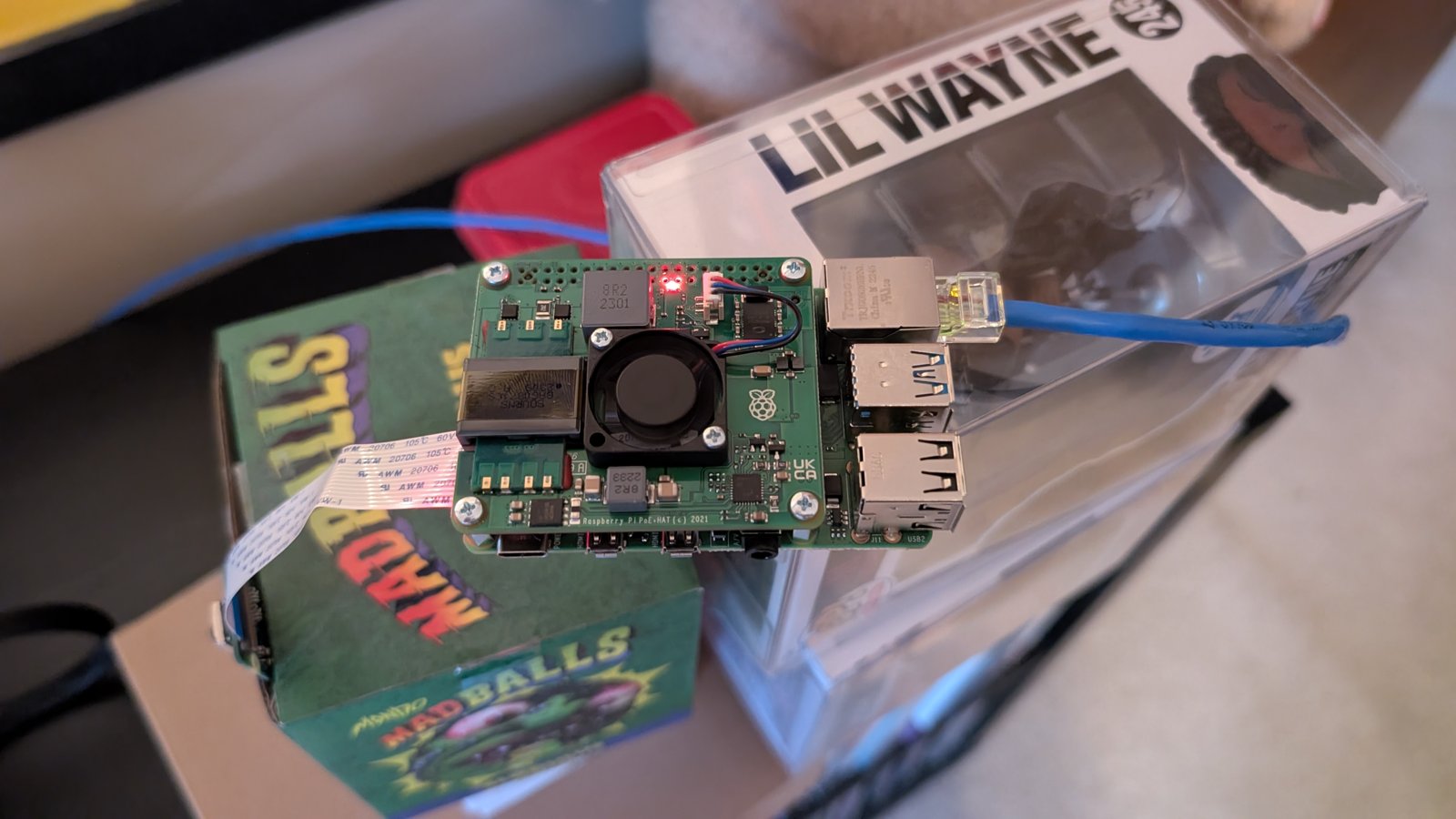
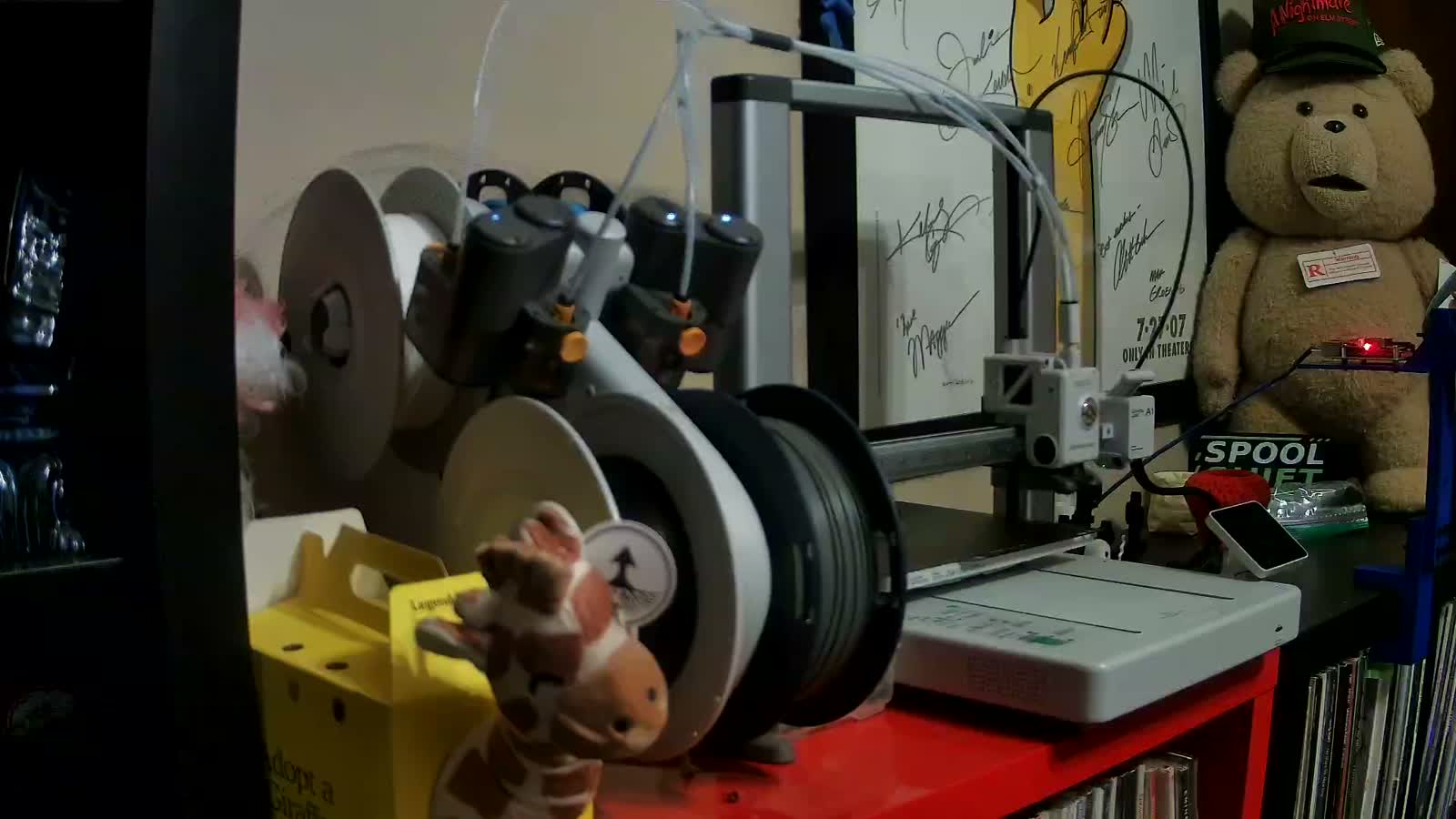
A Raspberry Pi 4, Camera Module 3, and PoE+ HAT provide the main view. A budget PoE network camera from AliExpress adds a wider angle. Together they feed the recording and broadcast setup for YouTube and TikTok.
October 26 update: The second camera is installed in its printed shelf mount, and the YouTube overlay is enabled. The original Pi camera remains the main view. Both camera feeds have been checked at 1080p and about 30 fps; broadcast processing can use a lower output resolution.
01 / THE HARDWARE
Small camera. Full workflow.
Raspberry Pi 4 Model B
Runs Raspberry Pi OS Lite 64-bit and MediaMTX. The Pi supplies the camera feed; the server handles recording and broadcast automation.
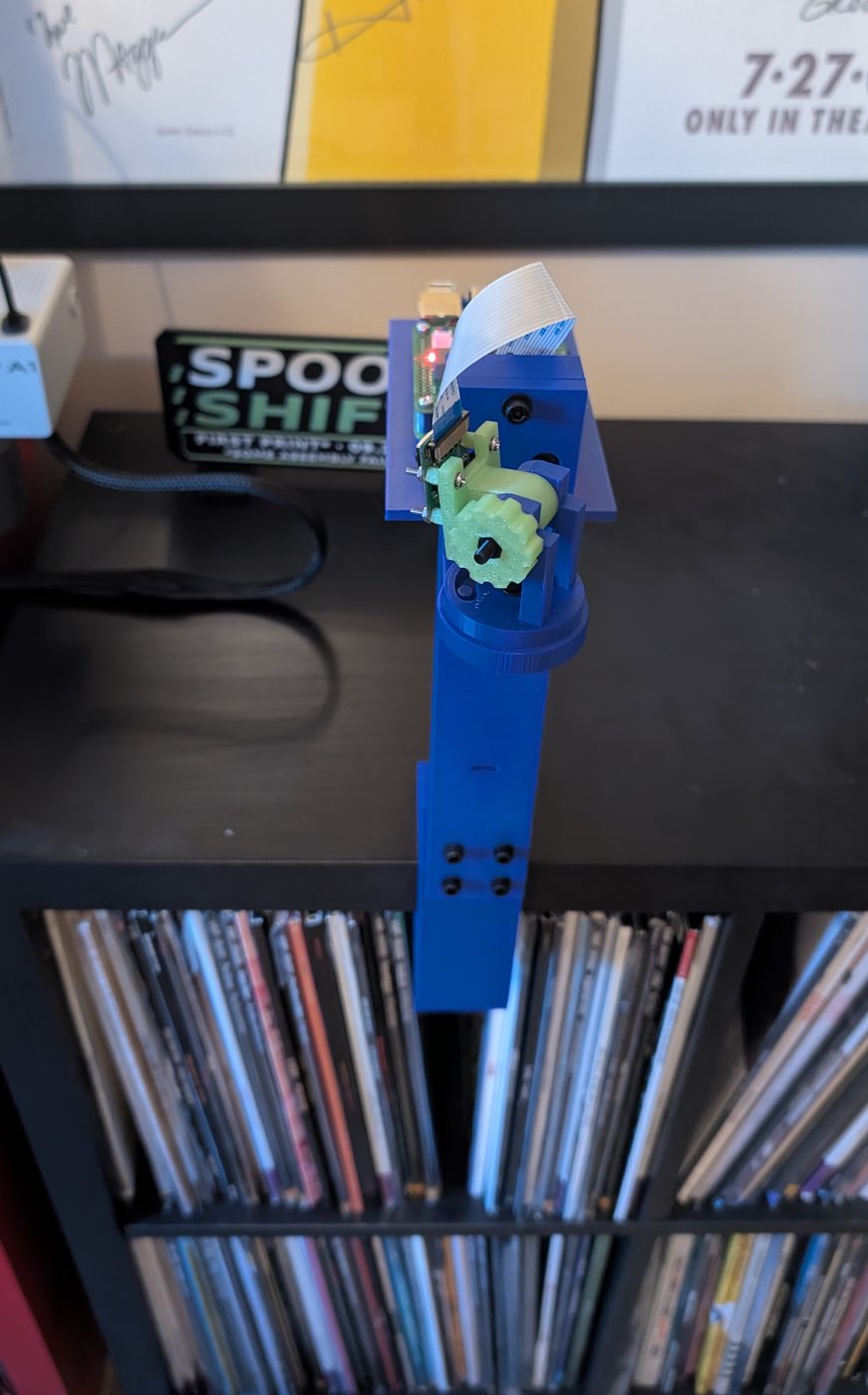
Camera Module 3
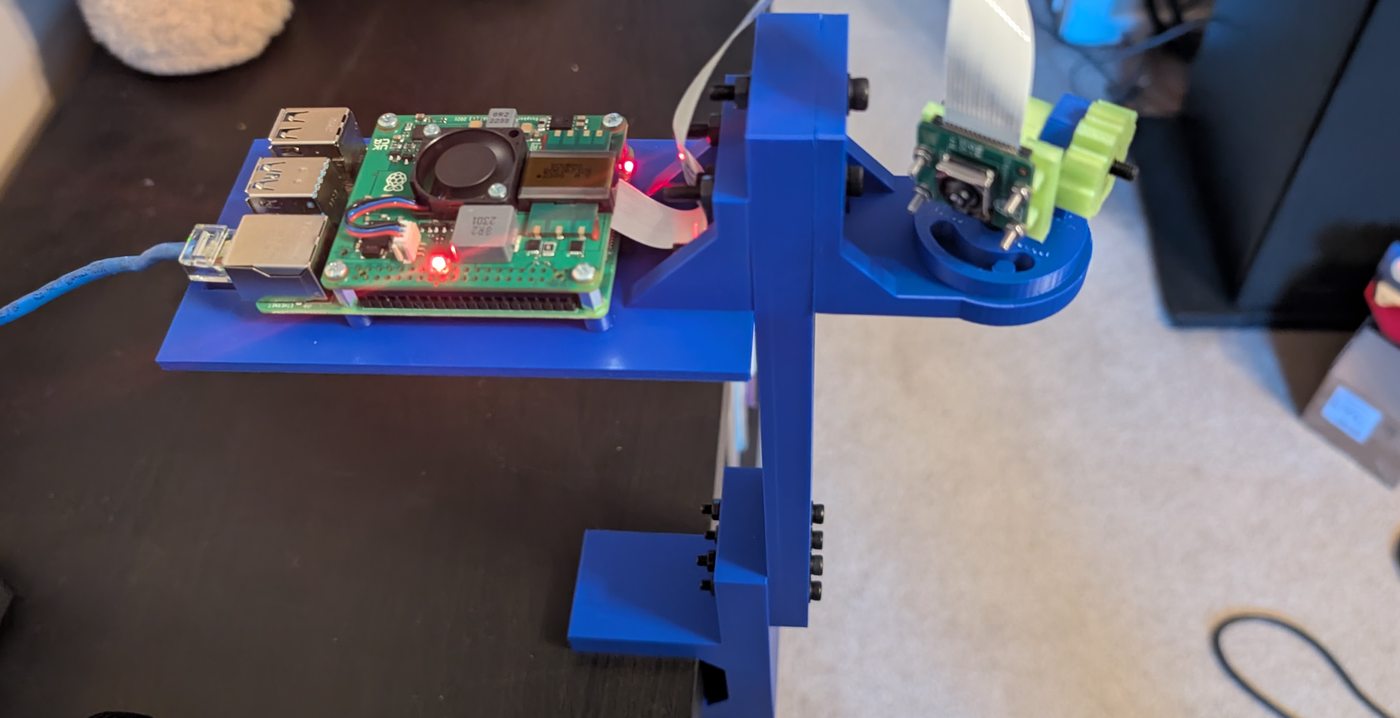
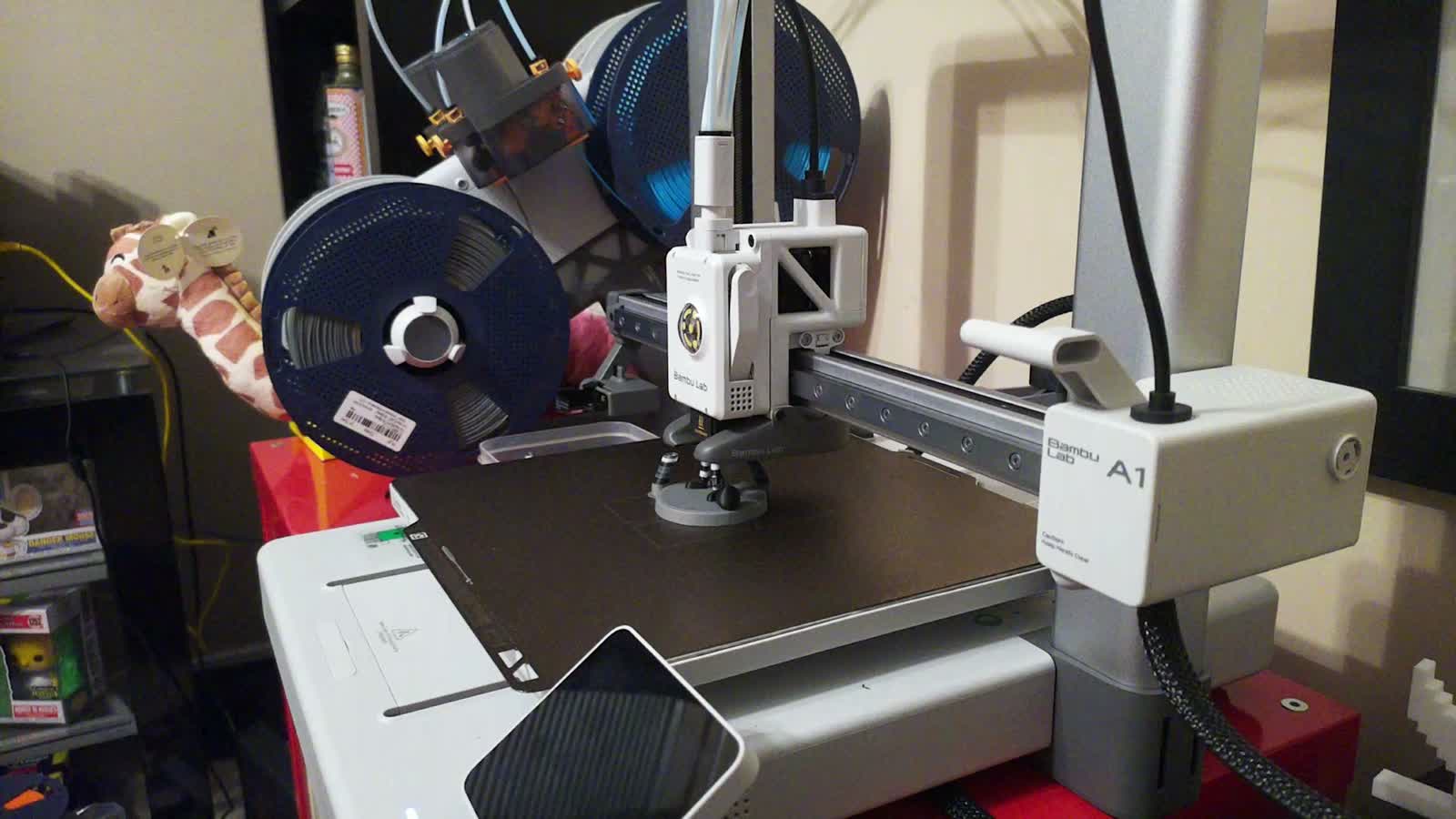
The official autofocus camera connects to the Pi with a ribbon cable and looks at the printer’s build area.
PoE+ HAT
Power and network arrive over one Ethernet cable from a PoE switch. The HAT includes a cooling fan.
A SECOND ANGLE / OCTOBER 2026
A budget camera. A second perspective.
The second view comes from an AliExpress PoE IP camera module, mounted in our printed shelf bracket. Ethernet carries power and video, and the camera supplies its own RTSP feed without another Raspberry Pi.
The listing describes an IMX415 / SSC338Q module with several lens and power options. Our settings below document the feed we tested, rather than the listing’s maximum advertised resolution.
View the AliExpress camera listing ↗
- Tested feed
- 1920 × 1080 · 30 fps
- Encoder
- H.264 · VBR · 6 Mbps
- Sensor timing
- 60 Hz
- Connection
- PoE Ethernet · local RTSP
The second camera now sits in a purpose-built printed shelf mount. Its image is rotated at the camera so the corrected orientation carries through to every view. On October 24, its native output was restored to 1080p at a measured 30 fps while the existing broadcasts continued.
02 / THE SIGNAL PATH
From the print bed to YouTube.
- Camera Module 3Ribbon cable to the Pi
- Pi + MediaMTXLocal video over Ethernet
- Docker studioRelay, capture, and automation
- YouTube + NASBroadcast and saved media
The second camera sends its own local RTSP feed over Ethernet into the studio alongside the Pi feed. Home Assistant supplies printer status, and Python runs the automation. The figures below describe the main Pi feed; the second-camera settings are listed above.
- Video
- 1920 × 1080 · 30 fps
- Encoding
- H.264 · about 6 Mbps
- Keyframes
- Every 2 seconds
- Room audio
- Not captured
03 / SETUP & PROCESS
How it all comes together.
- 01
Prepare the Pi
Raspberry Pi OS Lite 64-bit was installed with Raspberry Pi Imager, using wired Ethernet and SSH key access for remote maintenance. The microSD holds the operating system and software, not the print archive.
- 02
Bring the camera online
The MediaMTX service reads the Camera Module 3 and exposes a local RTSP feed. The installed camera service is configured to start at boot. Autofocus is enabled, and the image is rotated to suit the current mounting orientation.
- 03
Relay the feed to the studio
On the Docker server, go2rtc relays the feed for the local studio and capture service. The studio has separate Live, Recordings, and Settings pages. Watching the local preview does not start a recording or a YouTube broadcast.
- 04
Connect printer status and YouTube
Home Assistant’s Bambu integration supplies the print state. A custom Python service checks it every five seconds. YouTube account authorization allows that service to prepare and manage a separate broadcast for each print.
- 05
Record and broadcast
Preparation or printing starts capture and the broadcast workflow. Pauses keep capture running. When the print finishes, fails, or is cancelled, the service allows a 60-second ending buffer before stopping. FFmpeg handles the media work.
- 06
Process, archive, and deliver
The server produces the original video and a timelapse, then copies them from SSD scratch storage to the NAS. Checksums are verified before SSD copies are removed. New timelapses upload as separate Private YouTube videos, and completion or failure alerts go to Discord and Home Assistant phone notifications.
04 / BROADCAST CONTROLS
A separate broadcast for each print.
Visibility and presentation
The studio lets us choose Private, Unlisted, or Public for future broadcasts. Tests have been Private and Unlisted. Saved title and description templates can be set up to include the print name and date. New broadcasts receive the Spool Shift LIVE PRINT thumbnail.
Tests before a real print
Timed tests can run for 1, 5, 15, or 30 minutes without commanding the printer. Manual recording is local-only; it does not start YouTube. The automatic print workflow starts from Home Assistant’s reported printer state.
Music stays with the broadcast
The broadcast uses a licensed background-music library. Tracks are credited by artist and title, with the license and full credits available on our music page. Music is added only to the broadcast; original recordings and timelapses remain silent.
Files stay under our control
SSD is scratch space; the NAS holds verified archives. Original print recordings are retained for 90 days, test recordings for 7 days, and other timelapses indefinitely. Local retention does not delete YouTube videos.
05 / WHAT WE’VE VERIFIED
Tested beyond the preview window.
The Pi feed measured about 30 fps at 6 Mbps, with two-second keyframes. A 30-minute private YouTube test completed with Excellent video health and no recorded disconnects. Later rehearsals exercised automatic broadcast creation, stopping, recording, timelapse generation, and NAS archiving.
Private timelapse uploads, branded thumbnails, notifications, and broadcast music have also been tested. One later short test showed a YouTube frame-rate warning, and the Studio preview has occasionally lagged behind live. These tests are useful evidence, not a promise that every future stream will be flawless.
September 27, 2026: The camera mount is complete and installed, with the Pi and camera fitted. The clamp print was our first simultaneous TikTok and YouTube stream. The completed hardware is documented in the Build Log; these installation photos document the hardware rather than a guarantee of uninterrupted broadcasts.
06 / TIKTOK + YOUTUBE
Two angles. Two platforms.
The camera-mount clamp was our first simultaneous TikTok and YouTube print broadcast. YouTube uses the server workflow; TikTok now runs on a separate desktop computer with OBS and TikTok LIVE Studio.
OBS to LIVE Studio
OBS supplies the video scene through its Virtual Camera to TikTok LIVE Studio. Windows signs in and opens the studio automatically, and OBS starts with Windows. The move to the desktop improved the observed stream quality.
Camera switching
OBS can switch between the main view and the second angle during a print. The main view gets the longer turn; the second angle makes shorter appearances. Manual scene changes take priority. Switching and restart persistence were checked in an offline preview before enabling the production script.
Print-aware controls
A helper follows the print jobs and coordinates TikTok start and stop. Automatic stopping has worked on the desktop setup; a fresh end-to-end automatic start still needs confirmation after the latest network changes.
Music, without room audio
The TikTok setup includes music. The microphone and room audio remain muted. YouTube keeps its separate broadcast audio setup, while original recordings and timelapses stay silent.
Long streams still need attention
TikTok has presented a human-presence check during a longer broadcast. That means multi-hour streams still need someone available; automatic startup is not a promise of fully unattended streaming.
For YouTube, the next broadcast is now prepared ahead of the print, with a readiness indicator and fewer background API requests. This reduces reliance on creating an event at print start. Broadcast preparation and title updates continue to be refined. Longer-stream reliability is still being tested; a ready event is not a guarantee of uninterrupted delivery.
07 / THE VIDEO OVERLAY
The story, on screen.
The video overlay adds Spool Shift branding and printer status to the broadcast. A browser-source version is available for OBS, and the YouTube sender renders its panel into the video. Home Assistant supplies the data, so viewers can follow the build without guessing how far along it is.
October 26 update: The YouTube overlay is enabled. A recent repair replaced cached printer readings with fresh data and added checks to reject stale results. The website’s live status remains a separate view, with model previews, spool details, and a YouTube link when a public broadcast is verified.
What the overlay shows
The panel shows the print name, a progress bar and percentage, current and total layers, estimated time remaining, and the printer’s status. A friendly display-name override replaces the slicer’s filename when needed.
Made for the picture
The graphite-and-lime presentation keeps printer information readable while leaving the build in view. The live website panel below shows current data; recorded camera examples elsewhere on this page are still images.
This panel shows the same printer status on the website, refreshed every 15 seconds. When updates stop, it shows “Status unavailable.” Remaining time is an estimate.
THE SOUNDTRACK / MUSIC CREDITS
Music with the credits attached.
Our background-music library includes tracks by Jason Shaw, Scott Buckley, Chris Zabriskie, and Kevin MacLeod under Creative Commons Attribution 4.0. The YouTube broadcast footer displays the current artist and track, alongside the license and our credits-page address.
The full library credits include each track’s source and license link. Tracks are loudness-normalized, converted for streaming, and faded at transitions; an individual broadcast plays a selection from the library. The music accompanies the stream while the original camera recordings and timelapses stay silent.
BEHIND THE SCENES / MONITORING
Watching for the wrong kind of noodles.
BamBuddy and experimental camera-based failure detection add another way to spot a print going wrong. Detection is configured to notify only: it does not automatically stop the printer or cut its power.
A successful camera-frame prediction confirms the connection works. It does not mean every adhesion failure or tangle will be caught. The person checking the print still has a job.